DS4Windows – Redefining Controller Precision on PC

DS4Windows elevates PC gaming with seamless PlayStation controller integration, precision-driven customization, and intuitive controls for a refined Windows gaming experience.

  • Windows 10 or newer
  • Free & open source (GPL-3.0)
  • USB & Bluetooth
  • PS4 & PS5 controllers
CONTROLLER SETUPQuick overview

Connect. Configure. Play.

Your controller, tailored to the way you game.

01
Connect your controllerDualShock 4 or DualSense · USB / Bluetooth
02
Choose your game profileMap buttons, sticks and touch controls
03
Start playing on PCCompatible virtual controller output
Configurable input mapping Windows PC

What is DS4Windows?

DS4Windows is a portable, open-source input mapper and virtual emulator. It connects PlayStation controllers to a Windows 10 or Windows 11 PC and translates their input into a controller most PC games already understand.

Overview

Many PC games are built around Xbox controllers and the XInput system. A PlayStation controller plugged into Windows does not automatically speak that language, so buttons may not respond or prompts may not match. DS4Windows solves this by reading the PlayStation controller and passing its input to a virtual Xbox 360 controller created with the ViGEmBus driver.

On top of that bridge, DS4Windows adds the kind of control PC players like: remapping, profiles that switch per game, touchpad mouse control, motion controls, lightbar colours and fine-grained stick and trigger tuning.
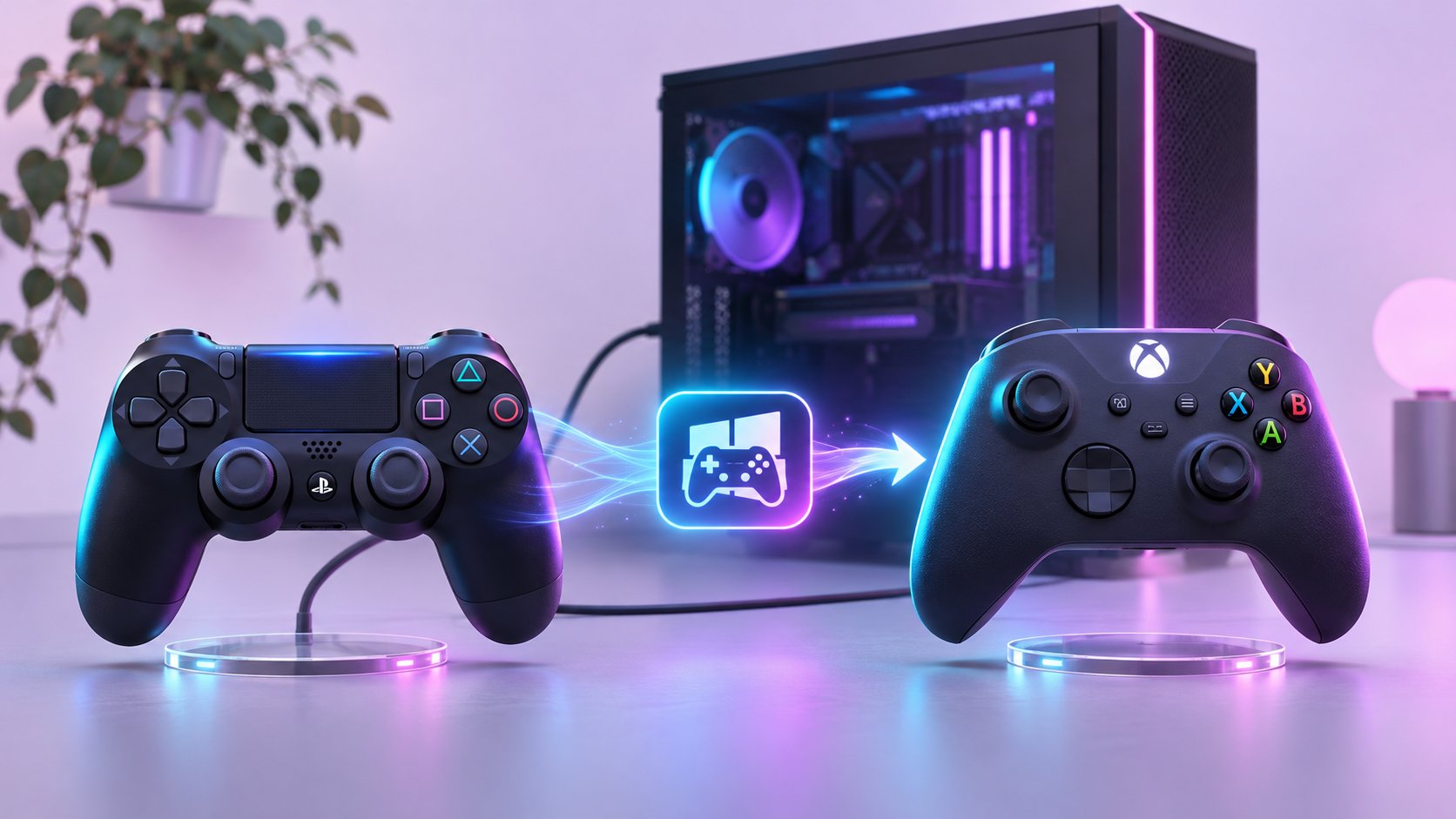
Concept illustration of a PlayStation controller mapped to a virtual Xbox controller on PC

Features of DS4Windows

The features below are described in the DS4Windows documentation and repository. Availability of individual options can vary between builds and forks.

Core

Xbox 360 controller emulation

DS4Windows reads your PlayStation controller and presents it to Windows as a virtual Xbox 360 controller through the ViGEmBus driver. Games that only understand XInput pads see a controller they already support, so you can play without buying another gamepad.

Profiles

Profiles and auto profiles

Save different layouts and settings as profiles, then let auto profiles switch them when a specific game or program starts.

  • Per-game switching
  • Multiple slots
  • Custom layouts

Touchpad as a mouse

Use the touchpad to move the cursor, click and scroll in launchers or on the desktop.

Motion controls

Map the built-in motion sensors to mouse-style aiming or steering.

Lightbar and rumble

Choose lightbar colours, show battery level and control rumble strength.

Dead zones and curves

Tune stick and trigger dead zones, sensitivity and response curves.

Stick drift helper

The repository README lists a tool to help fix stick drift, plus switch debouncing.

Extract-anywhere design

No traditional installer: extract the files to a folder and keep them where you like.

How it works

DS4Windows sits between your controller and your games. Once the requirements are in place, the app creates a virtual Xbox controller and keeps your chosen settings active while you play.

What you need

  • ControllerDualShock 4 or DualSense
  • ConnectionUSB cable or Bluetooth
  • SystemWindows 10 or newer

Setup workflow

  1. Step 01Download

    Download the ZIP archive

    Use the Download section on this page. Your browser saves a ZIP archive of the DS4Windows repository from GitHub.

  2. Step 02Prepare

    Install the requirements

    Make sure Windows 10 or newer, the .NET 8.0 Desktop Runtime and the Visual C++ 2015–2022 Redistributable are installed.

  3. Step 03Driver

    Add the ViGEmBus driver

    DS4Windows uses ViGEmBus to create the virtual Xbox 360 controller and offers to install it for you when it is missing.

  4. Step 04Play

    Connect and choose a profile

    Connect your controller by USB or Bluetooth, pick or create a profile and start your game.

Supported controllers and system requirements

Based on the requirements and supported hardware listed in the DS4Windows repository README.

Controllers

ControllerNotes
DualShock 4 (PS4)Main supported controller
DualSense (PS5)First-party hardware only
Switch Pro ControllerFirst-party hardware only
Joy-ConFirst-party hardware only
DualShock 3Mentioned in the repository description

System requirements

  • Operating systemWindows 10 or newer
  • Microsoft .NET 8.0 Desktop Runtimex64 or x86
  • Visual C++ 2015–2022 Redistributablex64 or x86
  • ViGEmBus driverDS4Windows offers to install it
  • ConnectionUSB data cable, Sony Wireless Adapter or Bluetooth 4.0 (Microsoft Bluetooth stack)

Use cases

Typical situations where players reach for DS4Windows on a Windows PC.

PC games that expect an Xbox pad

Many Windows games only recognise XInput controllers. DS4Windows lets a PlayStation controller appear as one.

Emulators and older titles

Emulators and older games that read standard Xbox controller input can use your DualShock 4 or DualSense the same way.

Local multiplayer

Connect more than one controller and give each slot its own profile for couch co-op sessions.

Wireless couch gaming

Pair over Bluetooth and keep an eye on battery level from the controllers list.

Comfort and custom layouts

Remap buttons, adjust sensitivity and dead zones to suit the way you hold and use the controller.

Couch-friendly navigation

Use the touchpad as a mouse to move through launchers and menus without reaching for a keyboard.

Why use it

Use the controller you own

Skip buying a separate PC gamepad when you already have a PlayStation controller.

One setup for many games

A single virtual Xbox controller works across games, launchers and emulators that support XInput.

Settings that follow each game

Auto profiles change layouts for you, so you configure once and play.

Open-source transparency

The code is published under GPL-3.0, so anyone can read, review and build it.

Download DS4Windows

The button below downloads a ZIP archive of the DS4Windows repository directly from GitHub. Extract it to a folder, read the included README and follow the installation steps on this page.

  • File typeZIP archive
  • Hosted onGitHub
  • PlatformWindows 10 or newer
  • LicenceGNU GPL-3.0
Download DS4Windows
DS4Windows ZIP download concept with archive package, gamepad and laptop

How to set up DS4Windows

A safe, step-by-step setup after downloading the archive.

Step 1: Extract the ZIP

Right-click the downloaded archive, choose Extract All and select a folder inside your user profile.

Step 2: Read the README

The archive includes the repository README with requirements and the launch or build notes for that repository.

Step 3: Install runtimes

Install the .NET 8.0 Desktop Runtime and the Visual C++ 2015–2022 Redistributable from Microsoft.

Step 4: Install ViGEmBus

Allow DS4Windows to install ViGEmBus, or install it yourself. Add HidHide if you want device hiding.

Step 5: Connect and configure

Connect the controller, choose a profile and, for Steam games, review Steam's controller settings.

Safe download and usage guidance

DS4Windows installs drivers and reads controller input, so it is worth taking a few sensible precautions. This site does not run or certify the files; these are general good practices.

Use the supplied source

The main download button links straight to a ZIP archive on GitHub. Check the address in your browser before saving.

Scan before opening

Run the archive through your security software before extracting it, as you would with any downloaded file.

Review permission prompts

Driver installs such as ViGEmBus or HidHide ask for administrator approval. Read each prompt before accepting.

Back up your profiles

Copy your profile files before replacing a build so you can restore your layouts later.

Keep components updated

Install runtime updates from Microsoft and keep an eye on the repository for changes.

Respect game rules

Some online games use anti-cheat systems that are cautious about virtual input drivers. Check the game's policies.

DS4Windows pros and cons

Pros

  • Free and open source under the GNU GPL-3.0 licence
  • Supports DualShock 4, DualSense, Switch Pro and Joy-Con (first-party hardware)
  • Detailed control over sticks, triggers, touchpad, motion and lightbar
  • Profiles and auto profiles for per-game settings
  • Works over USB, the Sony Wireless Adapter or Bluetooth
  • Extract-anywhere design with no traditional installer

Cons

  • Windows only, and requires Windows 10 or newer
  • Needs extra components: .NET 8.0 Desktop Runtime, Visual C++ Redistributable and ViGEmBus
  • The Jays2Kings and Ryochan7 repositories are archived, so support relies on forks and the community
  • Some games register double input until device hiding is set up
  • DualSense adaptive triggers and advanced haptics are limited in most games

Common DS4Windows problems and fixes

Quick answers for the issues people run into most. Each card links to a detailed guide.

Double input in games

Install HidHide and enable device hiding so games only see the virtual controller.

Drivers guide

App will not open

Install the .NET 8.0 Desktop Runtime and the Visual C++ 2015–2022 Redistributable.

Runtime requirements

Games do not respond

The virtual Xbox controller needs ViGEmBus. Check Device Manager and reinstall it if missing.

ViGEmBus explained

Bluetooth drops or lag

Only the Microsoft Bluetooth stack is supported. Move closer to the receiver or test with USB.

Bluetooth pairing steps

Steam Input conflicts

Disable PlayStation and Xbox Configuration Support in Steam when DS4Windows handles the controller.

Common community fixes

DS4Windows frequently asked questions

Twenty answers split into two topics. Select a question to expand it.

Download & Setup

10

Controllers & Troubleshooting

10