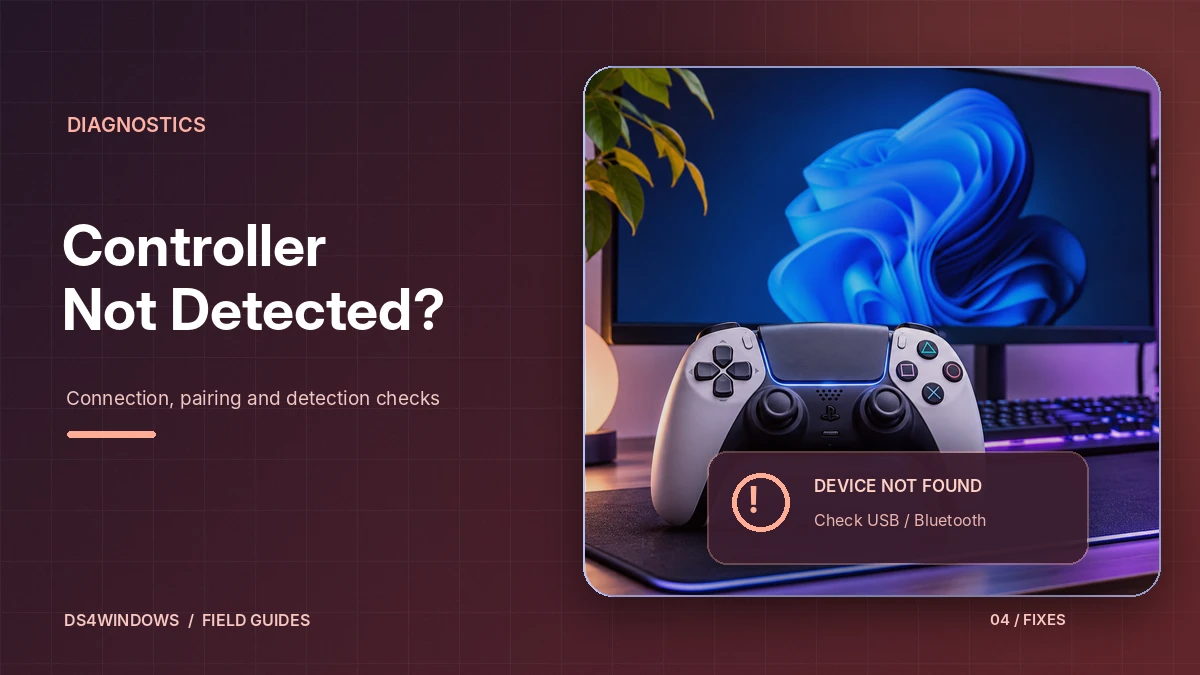
You open DS4Windows, connect your controller and… nothing. The Controllers tab stays empty, or the pad appears in Windows but games do not respond. This is one of the most common DS4Windows problems, and it nearly always has a simple cause. Work through the steps below in order.
Step 1: Check the cable and port
Many USB cables are charge-only and do not carry data. If the controller charges but DS4Windows never sees it, try a different cable you know can transfer data. The DualShock 4 uses micro-USB; the DualSense uses USB-C. Plug directly into the PC rather than through an unpowered hub, and try another port.
Step 2: Re-pair over Bluetooth
- Remove the controller from Settings → Bluetooth & devices.
- Put it in pairing mode: Share + PS on a DualShock 4, Create + PS on a DualSense, until the light flashes quickly.
- Pair it again from Windows, then start DS4Windows.
The DS4Windows README notes that only the Microsoft Bluetooth stack is supported, so adapters that depend on their own Bluetooth software may not work.
Step 3: Make sure DS4Windows is running and started
Check that the app shows its controllers list and that the service is started (there is a Start/Stop control in the main window). If you close the window to the tray, the program may still be running – look for its icon near the clock.
Step 4: Check ViGEmBus and runtimes
If the controller appears in DS4Windows but games do not respond, the virtual Xbox controller is probably missing. Confirm that ViGEmBus is installed (Device Manager → System devices) and that the .NET 8.0 Desktop Runtime and Visual C++ 2015–2022 Redistributable are present. Our drivers guide explains each one.
Step 5: Review device hiding
Device hiding prevents double input, but a misconfigured setup can also hide the controller from DS4Windows itself. If you use HidHide, make sure DS4Windows is allowed to see the device, then reconnect. Turning hiding off temporarily is a quick test.
Step 6: Close conflicting software
Other controller tools can grab the device first. Close them while testing, and in Steam disable PlayStation and Xbox Configuration Support as recommended in the README. Then reconnect the controller.
Step 7: Restart and reset
After installing drivers, a full Windows restart is often required. If nothing else helps, back up your profiles, extract a fresh copy of the program into a new folder and test with default settings. You can also review the log tab and share it in community threads – see DS4Windows Reddit questions for tips.
Find out whether Windows can see the controller
Begin outside DS4Windows. Connect the gamepad with a data-capable USB cable, open Windows Device Manager and look for changes when you unplug and reconnect it. You can also open the Windows game-controller panel by running joy.cpl. If Windows does not react to the physical connection at all, the immediate problem is probably a cable, port, Bluetooth pairing or device-level issue rather than a broken profile inside DS4Windows.
Try another known-good cable and a direct USB port on the computer before using a hub. A cable that charges the controller but carries no data can look normal while the application sees nothing. If a second PC also fails to register the device, test the controller itself. If Windows sees it but DS4Windows does not, concentrate instead on the app version, device visibility settings and competing background software.
Separate Bluetooth pairing from app detection
Bluetooth adds another step between the controller and the application. A pad can appear as paired in Windows without maintaining a healthy active connection. Remove a stale pairing if needed, then pair the controller again using the proper button combination for that model. Keep the gamepad near the computer for the initial test, and check its battery level. Metal desks, crowded USB ports and wireless interference can all affect connection quality.
After pairing, check whether Windows registers inputs before opening multiple launchers. Some third-party Bluetooth driver stacks are not supported by particular DS4Windows builds, so the adapter software matters as well as the controller itself. If wired input works but Bluetooth does not, preserve the working USB configuration and investigate the wireless stack independently. Reinstalling the entire controller mapper rarely fixes a weak or incompatible Bluetooth connection.
Distinguish real input from virtual output
DS4Windows has to detect a real controller before it can translate that controller into virtual output. A game that does not respond is therefore a different symptom from an empty Controllers tab. If the physical device is listed in DS4Windows but a game ignores it, check the selected profile and its configured output controller. Then inspect the relevant virtual gamepad driver and confirm that another remapper is not intercepting the same input.
Using this distinction saves considerable troubleshooting time. When no physical controller is detected, first examine Windows connectivity and the app log. When a controller is detected but no virtual device appears, look at the runtime, driver and DS4Windows status. When a virtual device appears but the game still fails, investigate the game configuration, Steam Input settings or whether the title is focused on a different controller slot.
Review HidHide without locking out the device
HidHide can prevent duplicate inputs by hiding the physical controller from selected applications. However, a mistaken configuration can make the same controller invisible to DS4Windows, too. Check the application allowlist and device selections carefully. The program that needs to read the physical controller must remain able to access it, while games that should use the virtual device can be restricted from seeing the original hardware.
If detection stopped right after changing device-hiding settings, temporarily return to a known, simple configuration and test again. Record the change so you can restore it deliberately. Avoid uninstalling several drivers at once, because then it becomes difficult to identify the real cause. A safe test changes one visibility setting, reconnects the controller and checks whether DS4Windows can see it before doing anything else.
Use a repeatable diagnostic sequence
Make a small checklist of what works: Windows detects USB, Windows detects Bluetooth, DS4Windows lists the physical device, a virtual controller appears and a game responds. Mark each result separately. This sequence will tell you where the signal stops. It also provides useful information if you ask for help in a community forum, because other users can focus on the failing stage instead of offering generic reinstall advice.
When reporting a problem, include your Windows version, DS4Windows build, controller model, connection type and the exact error message from the log if there is one. Mention whether the controller previously worked and what changed immediately before the failure. Screenshots of device names can help, but remove personal folder paths and identifying account information. Once you resolve the issue, save the working settings for future comparison.
Conclusion
When DS4Windows does not detect a controller, isolate the failure in order: hardware connection, Windows recognition, app detection, virtual output and game input. Wired testing, careful HidHide checks and a short record of results will usually reveal the failing stage faster than a full reinstall. Preserve the last working configuration as you troubleshoot.