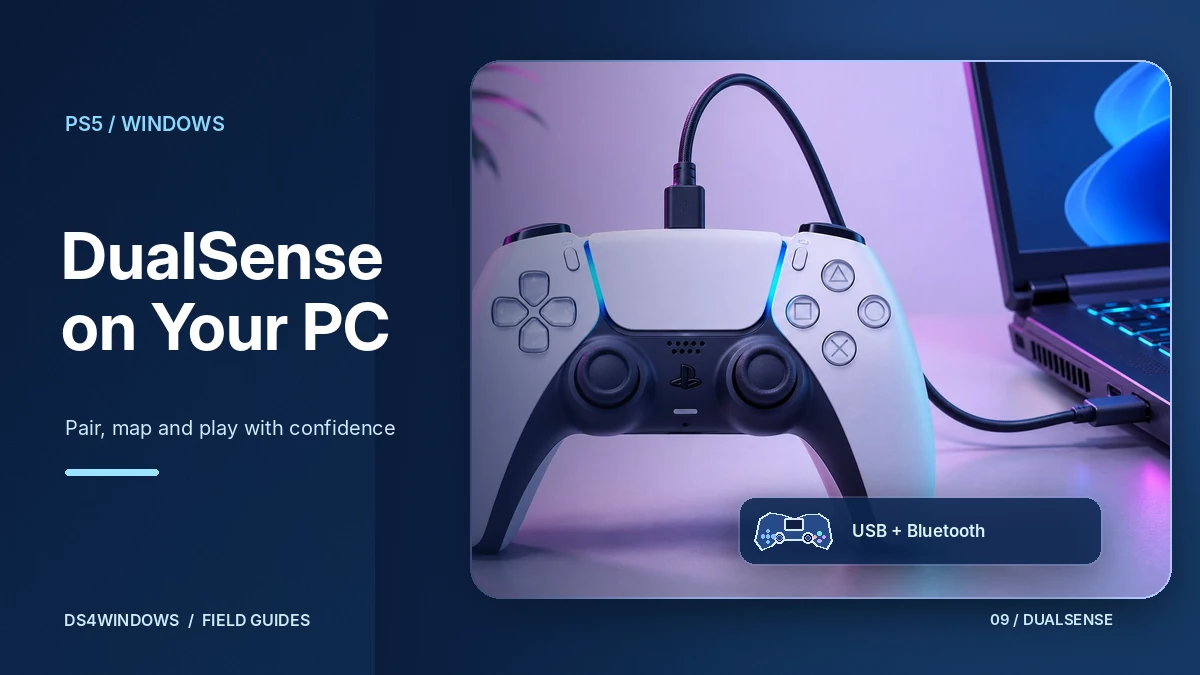
Despite the name, DS4Windows is not limited to the DualShock 4. Modern builds also support the PlayStation 5 DualSense, which makes DS4Windows PS5 setups one of the most popular reasons people download the tool. This guide explains how to connect a DualSense, what DS4Windows does with it and where the limits are.
Why use DS4Windows with a DualSense?
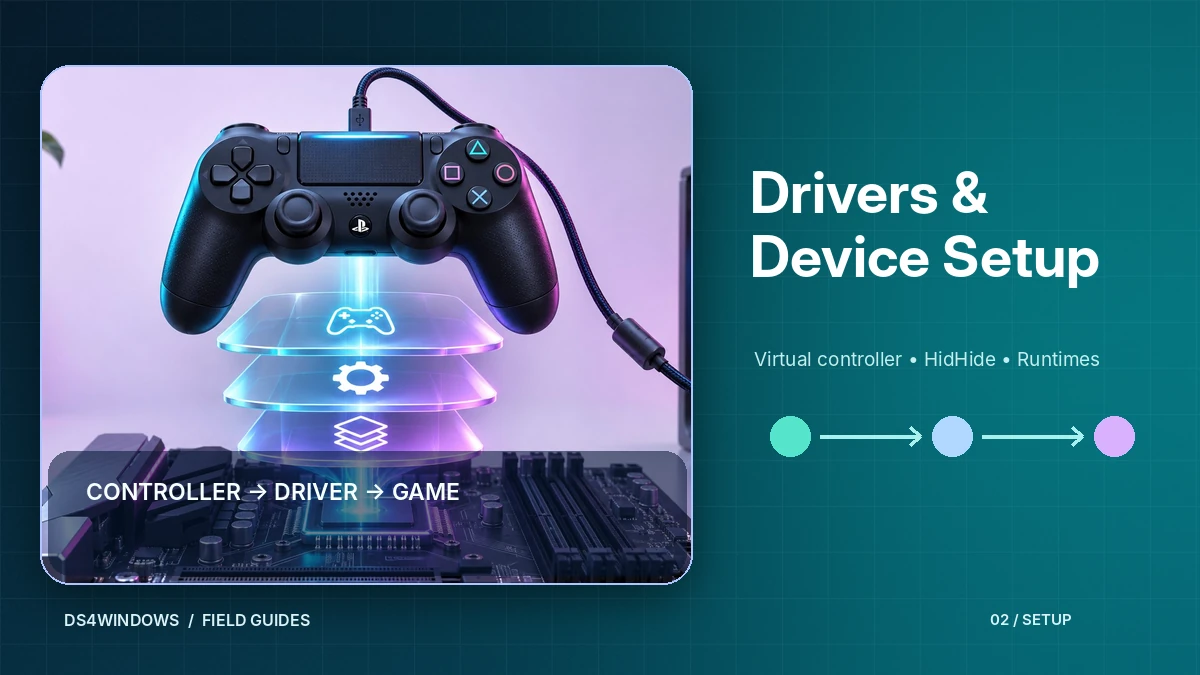
Windows can see a DualSense as a generic game controller, and some launchers have built-in support. But many PC games only expect an Xbox controller. DS4Windows bridges that gap by creating a virtual Xbox 360 controller through the ViGEmBus driver and feeding it your DualSense input. Games then see a standard XInput pad, with matching button prompts in many titles.
Connecting by USB
- Install the requirements: Windows 10 or newer, .NET 8.0 Desktop Runtime, Visual C++ 2015–2022 Redistributable and ViGEmBus. Details are in our drivers guide.
- Start DS4Windows.
- Plug the DualSense in with a USB-C cable that supports data, not a charge-only cable.
- The controller should appear in the Controllers tab within a few seconds.
Connecting by Bluetooth
- Open Windows Settings → Bluetooth & devices and choose to add a device.
- On the DualSense, hold the Create button (left of the touchpad) and the PS button together until the light around the touchpad flashes quickly.
- Select the controller in the Windows list to pair it.
- Open DS4Windows; the controller should be listed with a Bluetooth connection.
The DS4Windows README notes that only the Microsoft Bluetooth stack is supported. If you use an adapter with its own third-party Bluetooth software, pairing may not work as expected.
What works and what is limited
Standard inputs – sticks, buttons, triggers, the touchpad click and motion sensors – can be mapped and customised. Lightbar colour and rumble can be controlled too. However, the DualSense's adaptive triggers and advanced haptic feedback rely on support from each game and are not fully reproduced when the controller is presented as an Xbox 360 pad. Expect regular rumble rather than the full haptic experience in most titles.
Avoiding double input
Because games can see both the real DualSense and the virtual Xbox controller, some titles register every press twice. The usual fix is device hiding with the HidHide driver so that only the virtual controller is visible to games. Steam users should also disable PlayStation and Xbox Configuration Support in Steam settings, as recommended in the DS4Windows README. See Controller Not Detected for related fixes.
Set up a profile for your DualSense
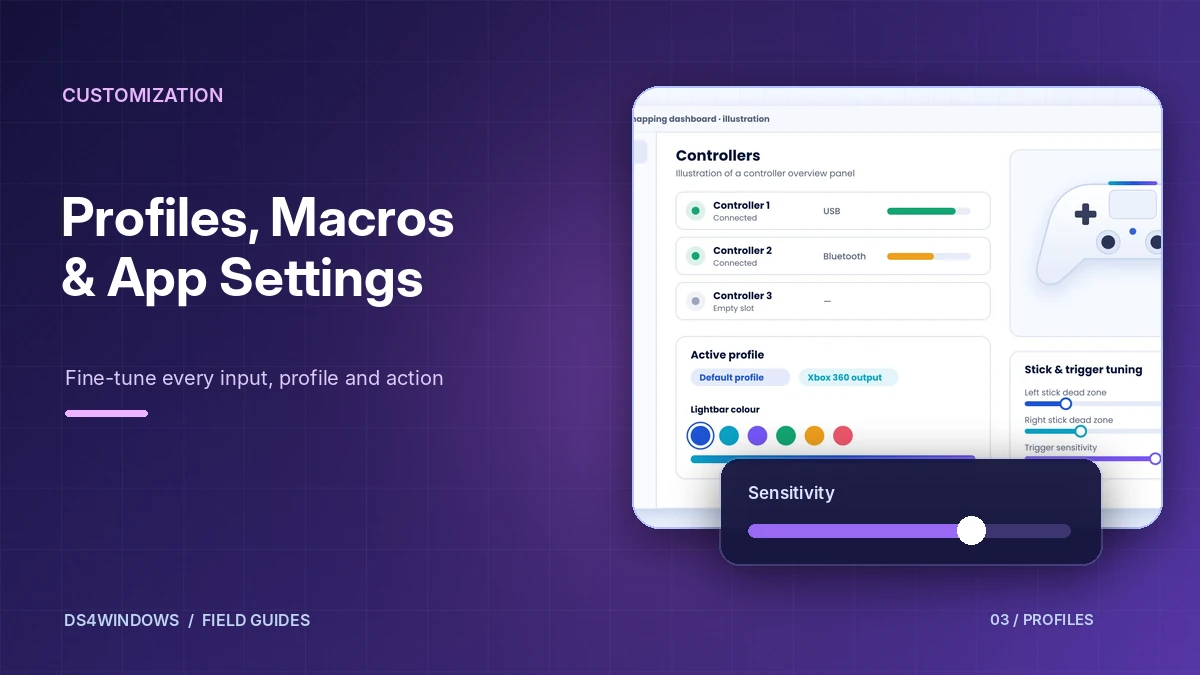
Once the controller is connected, create a profile, adjust dead zones and trigger sensitivity, pick a lightbar colour and save. Our DS4Windows App Guide explains each tab in plain language.
Choose native DualSense support or virtual Xbox output
Not every PC game needs a translation layer. Some titles can read a DualSense directly and may offer native PlayStation button prompts or game-specific controller features. DS4Windows becomes useful when a game expects Xbox-style XInput or when you want a customized profile. Decide which behavior you need before enabling multiple input layers. Running native game support, Steam Input and DS4Windows at the same time can introduce conflicts.
For an initial test, start with one ordinary game that supports an Xbox controller. Connect your DualSense, select a basic virtual Xbox profile and confirm that every button responds once. Only after that should you try more advanced native DualSense features. The full adaptive-trigger and high-resolution haptic experience depends on game support, connection mode and software path; conventional virtual Xbox output should not be expected to reproduce everything.
Optimize the first wired setup
USB offers a simple baseline because it removes Bluetooth pairing and interference from the equation. Use a genuine data-capable USB-C cable, connect directly to the PC and wait for Windows to register the controller. In DS4Windows, confirm that the controller appears with the expected connection type. If it does not, try another cable or USB port before adjusting application profiles.
Once detection works, create a neutral profile with standard buttons and minimal tuning. Open a controller tester to check stick centers, trigger travel and button presses. A slightly off-center analog stick may need a small dead zone, but start with the lowest adjustment that corrects visible drift. Save the profile and play briefly before making further changes; a reliable default is useful when troubleshooting later.
Improve Bluetooth reliability
Wireless play is convenient, but it adds battery level, radio interference and adapter compatibility to the checklist. Pair the DualSense through Windows Bluetooth settings, then confirm that it appears in DS4Windows. Keep the controller reasonably close to the computer and avoid placing an external adapter behind a dense metal PC case. A short USB extension cable can sometimes improve an adapter’s position without requiring a new controller.
If the pad disconnects only during wireless play, repeat the same test over USB. That comparison separates connection problems from profile or game issues. Review nearby wireless devices, power-saving behavior and outdated Bluetooth adapter software. Do not immediately change every driver. When USB remains stable, keep the working wired profile while you isolate the Bluetooth cause.
Understand lightbar, touchpad and motion mapping
The DualSense provides more controls than a standard virtual Xbox controller exposes. DS4Windows can map the touchpad to mouse or button actions and may use motion readings for aim or other custom behavior, depending on the build. These mappings are useful only when they suit the game. A touchpad configured as a mouse can accidentally move the cursor during full-screen play, so disable or customize it when unnecessary.
Lightbar color and ordinary rumble can be part of a profile, but advanced feedback is not guaranteed in XInput mode. Test these features separately from basic gameplay. If a title offers native DualSense features over USB, experiment with that input path rather than forcing Xbox emulation and assuming the special effects will remain available. The best configuration can differ between games.
Avoid duplicate inputs and save per-game profiles
A familiar symptom is a menu that skips two items when you press the D-pad once. This often means the game sees both the physical DualSense and the virtual Xbox device, or that multiple mapping tools are handling the same button. Check Steam Input behavior for the title and decide whether DS4Windows or the launcher should manage the controller. Device hiding can help, but only when configured to preserve DS4Windows access to the real gamepad.
After finding a combination that works, save a profile using the game name and note whether it depends on USB, Bluetooth or native input. That record prevents accidentally applying a special-purpose layout to every game. If controls change unexpectedly after an update, reload the default profile, confirm the output type and test one layer at a time before reinstalling anything.
Conclusion
A PS5 DualSense can work well on Windows through native game support or DS4Windows virtual output, depending on the title. Start with USB, verify standard inputs and customize one profile at a time. For Bluetooth, advanced feedback and Steam conflicts, isolate each feature and choose the simplest working configuration for the game.