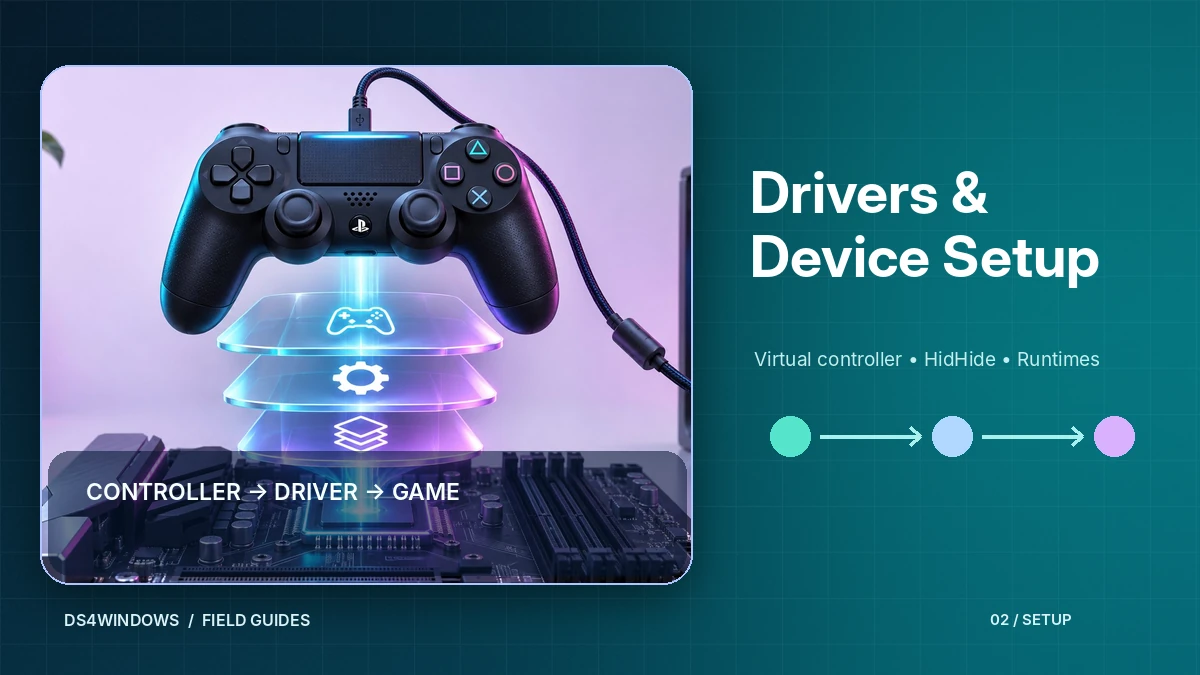
Most DS4Windows problems trace back to a missing or broken component rather than the app itself. The program sits on top of a small stack of DS4Windows drivers and runtimes, and each layer has a specific job. Once you understand the stack, troubleshooting becomes much faster.
The DS4Windows stack at a glance
| Component | What it does | Required? |
|---|---|---|
| ViGEmBus | Creates the virtual Xbox 360 controller that games see | Yes |
| .NET 8.0 Desktop Runtime | Lets the DS4Windows application itself run | Yes (current builds) |
| Visual C++ 2015–2022 Redistributable | Shared libraries used by the program | Yes |
| HidHide | Hides the physical controller from games to stop double input | Optional, recommended |
ViGEmBus: the virtual controller driver
ViGEmBus is a kernel-mode driver that emulates well-known USB game controllers. DS4Windows uses it to create a virtual Xbox 360 controller and sends your PlayStation controller input through it. Without ViGEmBus, DS4Windows can see your controller, but games will not receive a virtual Xbox pad.
The DS4Windows README notes that DS4Windows will install ViGEmBus for you. The ViGEmBus project has since been retired by its developer and its repository archived, so treat the last available release as final.
How to check it
Open Device Manager, expand System devices and look for an entry for the Virtual Gamepad Emulation Bus. If it is missing, reinstall the driver as an administrator and restart Windows.
HidHide: stopping double input
When DS4Windows is running, Windows can see two controllers: your real PlayStation pad and the virtual Xbox controller. Some games react to both, so each press is registered twice. HidHide is a filter driver that hides selected physical devices from applications while still allowing DS4Windows to read them. After installing it, enable device hiding in DS4Windows and reconnect the controller.
.NET 8.0 Desktop Runtime
Current DS4Windows builds are .NET applications. If the Desktop Runtime is missing, the program may refuse to start or show a prompt asking you to install .NET. Make sure you install the Desktop Runtime (not only the base runtime or ASP.NET Core), matching your system architecture (x64 for most PCs, x86 for 32-bit Windows).
Visual C++ 2015–2022 Redistributable
This package provides common Microsoft libraries. Many PCs already have it because games install it too. If you see errors about missing DLL files, installing or repairing the x64 (or x86) Visual C++ 2015–2022 Redistributable is the first step.
Recommended install order
- .NET 8.0 Desktop Runtime
- Visual C++ 2015–2022 Redistributable
- ViGEmBus (or let DS4Windows install it)
- HidHide (optional)
- Restart Windows, then start DS4Windows
Download the runtimes from Microsoft's own websites. For the program itself, use the Download section and read our safety notes.
Understand why the version matters
DS4Windows is a family of related projects rather than one perfectly uniform application across all release eras. The classic input-mapping workflow relies on a virtual gamepad driver such as ViGEmBus, while some newer branches have different output backends and installation requirements. Always match the driver instructions to the specific build on your PC. Installing every driver mentioned in every tutorial is unnecessary and can complicate device troubleshooting.
The most important separation is between reading your physical controller and creating a virtual controller for a game. USB or Bluetooth brings the original input into Windows. DS4Windows interprets that input according to a profile. The virtual driver provides an output device that games recognize. A failure at one stage produces a different symptom, so a diagnostic process should identify the stage before changing drivers.
Check driver status without guessing
When a supported classic build requests ViGEmBus, verify that the correct driver is installed and visible to Windows before attempting to repair the application. Device Manager and the installer logs are more informative than simply checking whether the DS4Windows window opens. If a virtual Xbox controller never appears, inspect the app log and the virtual-device driver status. Confirm that Windows security settings have not blocked installation.
Use administrator permission only when a driver installer actually needs it and close other mapper software before testing. Repeated installs of different driver versions can leave a confusing trail of devices. If a setup program reports a failure, save its exact message, restart if requested and test again. Avoid deleting driver folders manually: proper uninstall and repair procedures help Windows maintain consistent device registrations.
Configure device hiding carefully
HidHide and a virtual output driver serve different purposes. The virtual driver creates the gamepad your game should use; HidHide controls which applications can see the original physical controller. That separation is the key to solving double input. If a game processes the physical pad and the virtual pad simultaneously, one button press may cause two actions or menus may move two positions at once.
The device-hiding allowlist needs deliberate configuration so DS4Windows retains access to the controller. Start by confirming that the controller works before enabling hiding, then select the intended devices and applications. Test with one game, not several launchers at once. If the app suddenly stops detecting hardware, revisit the visibility rules before assuming that the USB cable, controller or virtual driver has failed.
Treat runtimes as application requirements
The .NET Desktop Runtime and Visual C++ Redistributable are not virtual controllers. They provide libraries required for the application to start and execute correctly. If the correct .NET runtime is missing, DS4Windows may display a runtime prompt or fail during startup. A missing C++ runtime may cause a component-loading error. Neither symptom is solved by changing joystick dead zones or reinstalling a Bluetooth adapter.
Confirm the architecture and version described by the chosen release. On Windows, different runtime versions can coexist, so removing an existing version to force a newer installer is often unnecessary. Use installed-app listings to check what is present, and retain exact error details if something fails. This approach avoids the common mistake of confusing application startup failures with gamepad emulation failures.
Keep a reversible maintenance plan
Before adjusting drivers, save working profiles, document the application build and note which driver packages are installed. For a suspected conflict, close DS4Windows, Steam and other input tools, then test a single wired controller. If you decide to repair a driver, use the supplied installation or removal tool and follow its restart instructions. Change one component at a time so you can identify which step affected the result.
When everything works, there is little value in reinstalling drivers merely because a newer tutorial mentions a different version. Stable controller input, consistent virtual output and normal performance are better signs of a healthy system than an ever-growing driver list. Revisit the configuration only when a feature is missing, a verified update requires it or a reproducible problem appears.
Conclusion
The right DS4Windows driver setup depends on the exact application branch. In classic configurations, virtual output, device hiding and desktop runtimes solve different problems and should be checked separately. Install only what your chosen release requires, make reversible changes and verify the result with a simple wired-controller test.