The DS4Windows app packs a lot of options into a compact window. That is great once you know your way around, but it can feel busy on first launch. This guide explains the main areas in plain language so you can get a comfortable setup quickly. Exact labels can differ slightly between builds and forks, so treat this as a map rather than a pixel-perfect manual.
First launch
DS4Windows is an extract-anywhere program, so there is no traditional installer to click through. On first start, builds commonly ask where to store settings – inside the program folder or in your user AppData folder – and offer to install the ViGEmBus driver if it is missing. Choosing AppData keeps your profiles separate from the program files, which makes updating easier.
Controllers tab
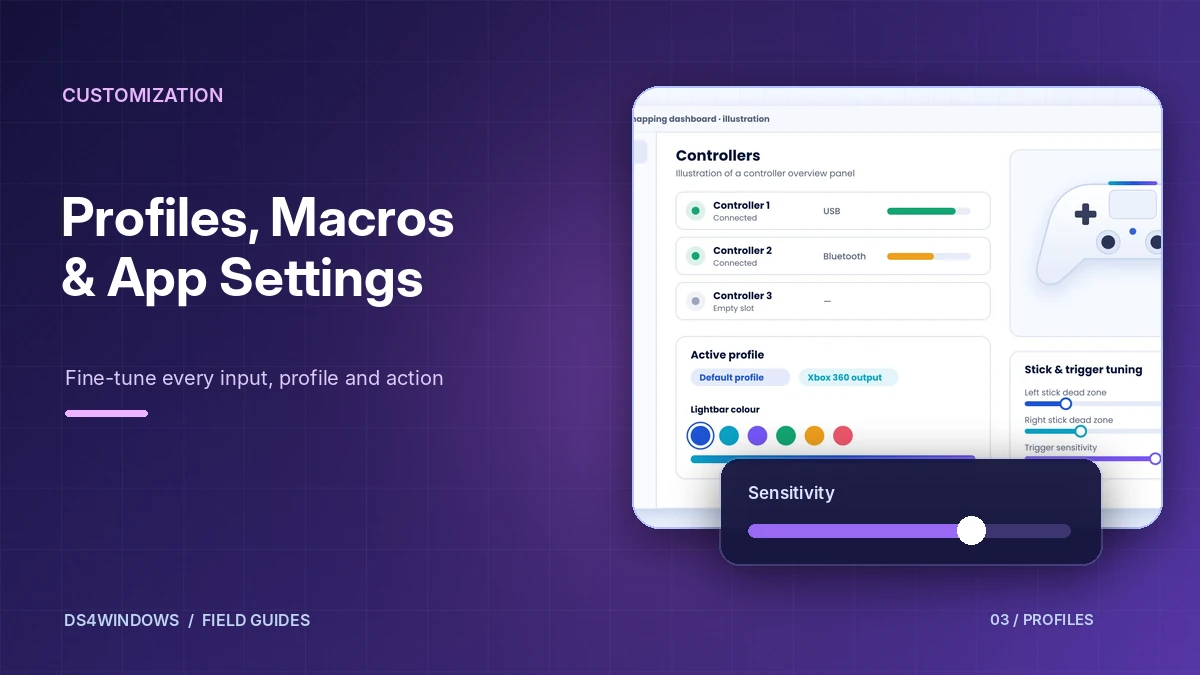
This is the main dashboard. Each connected controller appears in its own slot with its connection type (USB or Bluetooth), battery level and selected profile. From here you can quickly switch profiles or open the profile editor for a specific controller. If a pad is missing, see Controller Not Detected.
Profiles and the profile editor
A profile is a saved set of settings. The editor groups options into sections, typically covering:
- Controls – remap any button or stick direction to another button, a key or a mouse action.
- Lightbar – pick a colour, use it as a battery indicator or dim it.
- Touchpad – use the touchpad as a mouse, or for scrolling and gestures.
- Gyro / motion – use motion sensors for mouse-like aiming or steering.
- Sticks and triggers – dead zones, anti-dead zones, sensitivity and response curves.
- Special actions – macros or shortcuts, such as a button combination to disconnect Bluetooth.
Auto profiles
Auto profiles let DS4Windows switch to a chosen profile when a specific program starts. Point it at a game's executable, pick a profile for each controller slot and DS4Windows will swap settings automatically. This is ideal if you like a high-sensitivity layout for shooters and a relaxed one for racing games.
Settings and log
The settings area controls how DS4Windows itself behaves: whether it starts with Windows, minimises to the tray, checks for updates and handles device hiding. The log tab records what the app is doing, which is extremely helpful when something does not work – many fixes discussed on Reddit and other forums start with "what does the log say?".
Five settings worth adjusting first
- Stick dead zone – raise slightly if your character drifts with the stick at rest.
- Trigger dead zone – useful if light trigger touches register unintentionally.
- Lightbar – turn brightness down to save battery on wireless play.
- Touchpad mouse – handy for navigating launchers from the couch.
- Device hiding – prevents double input in games that see both controllers.
Understand the input-to-output path
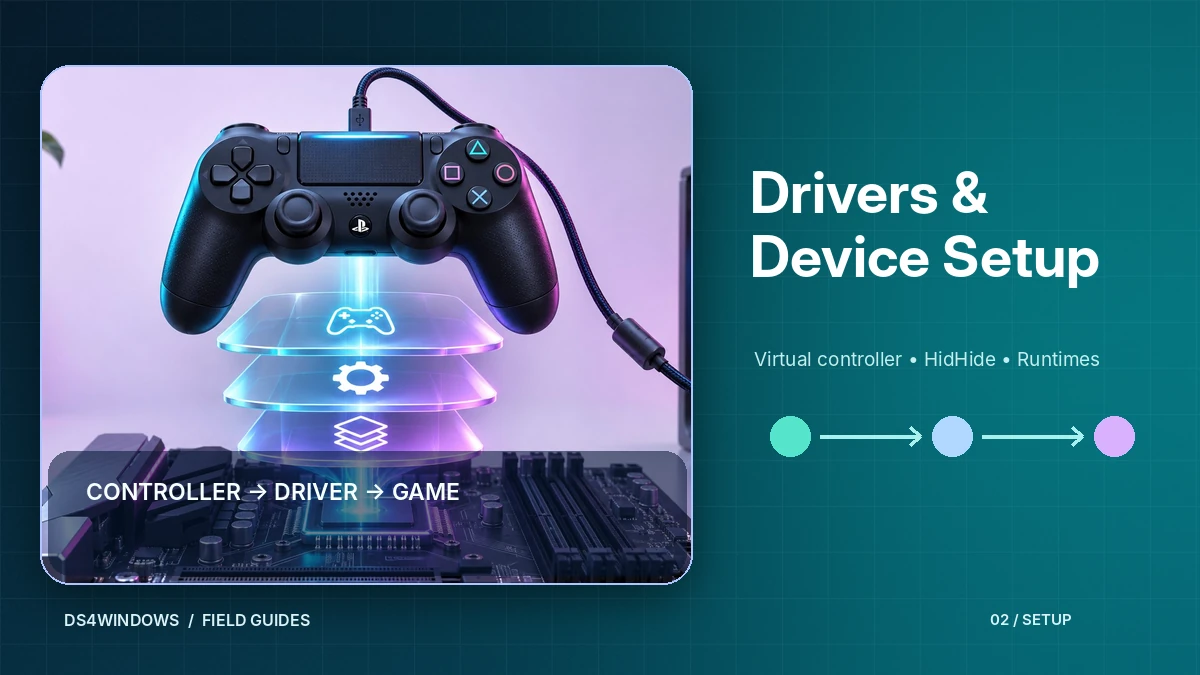
The most useful mental model for the DS4Windows app is a two-stage signal path. First, the program reads button presses, analog stick positions, triggers and touch input from your physical controller. Second, a selected profile transforms those readings into the output a game receives. The game does not need to understand the original device when the virtual controller is configured correctly. This distinction explains why an active physical connection does not always mean an individual game is ready to respond.
Check the controller list before editing a profile. A displayed device confirms that DS4Windows can see the hardware, but it does not by itself prove that virtual output has been created or that a game is reading it. After selecting a profile, use the Windows game-controller test panel to observe the output device. Make one change at a time and test it in a simple game or controller tester before applying further customizations.
Build a reliable everyday profile
Begin with a clean default profile rather than immediately changing every setting. Select the output controller type required by your games, keep button mappings familiar and test both analog sticks through their complete movement. A small inner dead zone can suppress unwanted movement from a worn stick, but an excessive dead zone makes aiming and steering feel unresponsive. Set it only as high as needed to stop drift at rest.
Pay attention to trigger thresholds separately from stick sensitivity. Racing games and shooters can react differently to the same curve, so create a dedicated profile only when a particular title needs unusual behavior. Give profiles descriptive names such as Standard XInput, Racing Trigger or Desktop Touchpad. Clear names are useful when you return to the application months later and cannot remember which settings you experimented with.
Make touchpad and gyro options intentional
The touchpad can be used for mouse movement, clicking or custom button actions, depending on the profile. This can be convenient for launching a game from a couch, but unintended cursor movement during gameplay is distracting. Decide whether you want the touchpad to serve as a mouse or a controller input for each profile. Review gestures and clicks after mapping because a small accidental touch can activate an action you did not intend.
Motion controls are equally context-dependent. Gyroscope-to-mouse mapping may make small aim corrections more precise for some players, while others prefer to leave motion disabled. Start with conservative sensitivity and confirm that the controller has a steady neutral position. When tuning motion controls, change only one axis or multiplier at a time and try the same repeatable movement so that improvements are easy to identify.
Keep Steam and other mappers from competing
If a game receives two inputs from one press, there may be more than one layer transforming the controller. Steam Input, another controller remapper and DS4Windows can each create mappings or virtual devices. Choose a single mapping path for the game you are testing, then disable overlapping configuration in the others as appropriate. The right combination depends on whether the game supports native PlayStation input and which features you actually need.
For difficult cases, disconnect other gamepads, close extra remapping utilities and restart the game after making changes. Do not interpret a duplicate controller in a test panel as automatic evidence of a defective driver; the physical and virtual devices can both appear by design. Device hiding is an advanced option that should be configured deliberately, with the physical controller accessible to DS4Windows while selected games see only the intended output.
Organize profiles and preserve working settings
Profile backups are especially useful before changing software versions, replacing a PC or troubleshooting a driver. Keep a copy of the profiles and configuration files from the actual settings location used by your installation. Portable and per-user configurations may store their data in different places. Note the build you used when creating the backup, because newer or older forks may interpret some options differently.
A quick maintenance routine prevents most configuration surprises. Verify that a controller appears, that the expected profile is selected, and that its output type matches the game. Test the controller while no game is running, then start one game and check its button prompts. If something breaks after an update, first return to the last working profile before reinstalling drivers or deleting the entire application folder.
Conclusion
The DS4Windows app is easiest to manage when you understand the path from physical input to virtual output. Begin with one clean profile, tune only the controls that need improvement and avoid overlapping mapping tools. Keep a backup of working settings so that game-specific experiments never cost you a stable everyday configuration.